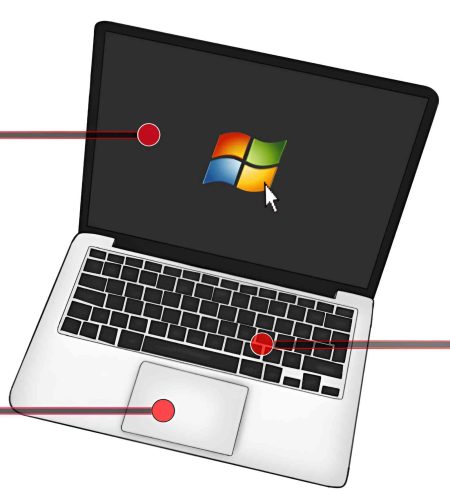
Nowadays, laptops have become a part of our daily working element for those who are always active on online platforms. The laptop’s performance is one of the key points before you buy it. Can you check a laptop and its performance? If you don’t know how to check a laptop model and its specifications, just read this article. Here I am going to clarify several things you should consider before you buy a laptop.
Laptop Models
Laptop model and version define laptop quality and performance. Also, knowing the laptop model makes it easy to find out its specifications by searching on Google.
So knowing the laptop model is very important before you purchase it. Read on to learn how to check a laptop model.
How to Check for the Model of a Laptop
To find out the laptop model, version, and system information, you need to follow these steps:
⦁ Press Windows and R button on the laptop keyboard. ( Run Dialog Box )
⦁ Then, type msinfo32 and hit Enter.
⦁ After that, all the information will appear on your desktop screen.
Processor
To use a high-quality performance laptop, you should consider the CPU’s number of cores, threads, clock speed, and cache levels.
Latest CPUs: Newer CPUs perform better than older CPUs. Latest-generation core processors are more capable and have enhanced performance, improved efficiency, and features like AI-powered capabilities, video editing, multitasking, etc.
Number of cores: The capability of running multiple tasks depends on how many cores are available in the CPU. So, the number of cores is one of the noticeable things for a user. Dual-core and quad-core are for basic tasks like browsing, email, streaming, light gaming, or photo editing. So, you need at least 6 to 16 cores to get a high-quality performance.
Threads : Threads are the smallest virtual sequences that allow a CPU core to handle multiple tasks concurrently, and they can be controlled separately by the operating system. Modern CPUs have the ability to run two threads per core. For example, hyper-threading technology allows a single CPU core to operate two threads.
Clock Speed : Using a 1.8 GHz to 2.2 GHz clock speed of a processor, you can only do simple tasks like web browsing or other normal tasks. You should use a 2.5 GHz to 3.5 GHz clock speed processor to run heavy video editing apps, games, or graphics designing apps.
Cache Memory : This chip stores frequently accessed data and instructions to reduce the use of slower RAM and improve system performance. 3 MB L3 cache memory is enough for simple tasks, but 8 MB or more cache memory is decent for good performance.
RAM
Random Access Memory, which you can call RAM in short form. Storing temporary data in an unstable storage space is needed to access and process data fast for the CPU. Nowadays, modern laptops come with 8 GB or 16 GB RAM for fast performance. So, if you want to do video editing, image editing, or programming, you need at least 8 GB of RAM to run those smoothly.
Storage and Other Slots
A 1TB hard drive is enough for storing documents, videos, and photos. Desktops and laptops are built using one of these two hard drives. (HDD or SSD) Between these two drives, SSDs are much faster than HDDs. However, HDDs are cheap compared to SSDs and have a higher storage capacity than SSD drives.
RAM and SSD slots: Old laptops are built with HDD drives and 2GB or 4 GB of RAM. The use of extra RAM and SSD slots could increase the storage of a laptop. Also, these slots are also helpful to improve laptop performance when you add external RAM and an SSD drive in your laptop.
Display
Before buying a laptop, you must check whether this laptop screen has any scratches or green lines. And check other details like display size, display resolution, refresh rate, and panel type to avoid display problems.
To check your own laptop’s display information, right-click on the screen. Then select Display Settings, scroll down, and click on Advanced Display Settings. On this page, you will see all the details about the display of this laptop.
Connectivity
Must check that laptop connectivities are working accurately. Because these functions are vital for connecting with other devices and networks both wirelessly and physically. Fast Wi-Fi connection, Bluetooth, USB, Ethernet, HDMI, and headphone jack are very important for network connection and data transfer.
How to Check a laptop’s graphics card
Dedicated graphics cards boost the laptop’s performance for gaming, video editing, 3D modeling, graphic design, or other graphics-intensive activities. Copy this command to check laptop graphics details.
⦁ Firstly, press Ctrl, Alt, and Del at once on your keyboard.
⦁ Then select Task Manager and go to performance.
⦁ After that, click on GPU. Here you will see your GPU details and current GPU memory space.
How to check the Laptop Battery Health
6600mAh to 8800mAh laptop batteries are capable of long time use. High battery capacity is usable for outside users, like college students or university students. Follow these steps in order to check your laptop battery health, activities, and full report.
⦁ Press your keyboard’s Windows key, then type or copy and paste “Command Prompt” in the search box and select “Command Prompt.” The Command Prompt will open on your screen.
⦁ Type or copy and paste this full text ( powercfg/batteryreport ) and press enter for battery details.
⦁ In the user directory or C drive, the battery report will save automatically as an HTML file.
⦁ Open your user directory and double-click on battery report to open it using any browser.
⦁ Analyze your battery performance, recent usage, usage history, battery capacity history, battery life estimates, and other things.
Conclusion
To conclude, students and a large number of working people use laptops to do their daily duties and assignments. Laptop performance really affects their work. Choosing a good-quality laptop is important to complete their various tasks.
So, it is important to know how to check a laptop before you buy it. This article can help you find an affordable and suitable laptop for your work.
Comments